Appearance
Downloads
WEAVE data products can be very large. A test request with a smaller set of search results may help towards understanding how long a larger request might take to complete. We also suggest checking your internet bandwidth before starting to download a very large file, once it is ready to be downloaded.
In order to request data to download from the WEAVE Archive System, it is first necessary to perform a search, from which a job will be queued on the server. Files cannot be downloaded or listed directly, since each target may have many associated files that the server needs to collect and generate, depending on the download request.
It is important to keep in mind that downloads will be generated on all of the search results, so it highly recommended to set some filters to limit the size of the data set you will be downloading.
The download button will appear once you have performed a search and your search has generated a result. The download button will allow you to download the requested data.
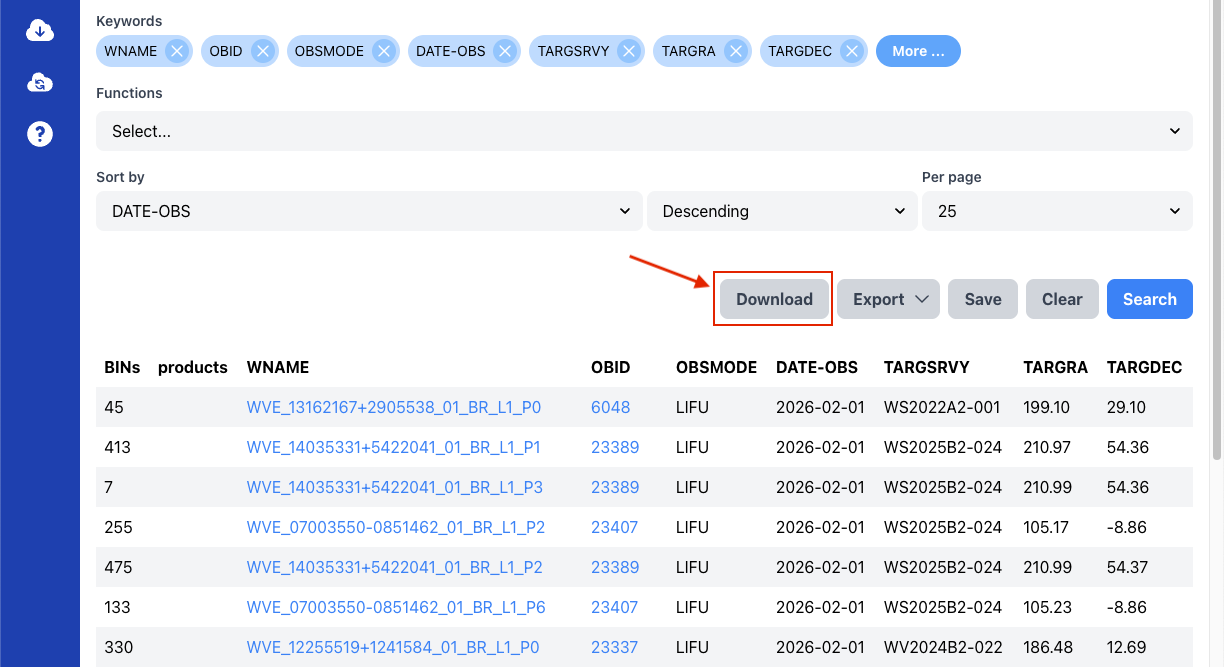 Download button on search interface
Download Dialog
Clicking on the download button will open a dialogue box, from which you can select various options and set a custom name for the download.
If the results obtained are Single Fibre type, it will be possible to choose between downloading only the specific Target fibres files or the file for the complete OB.
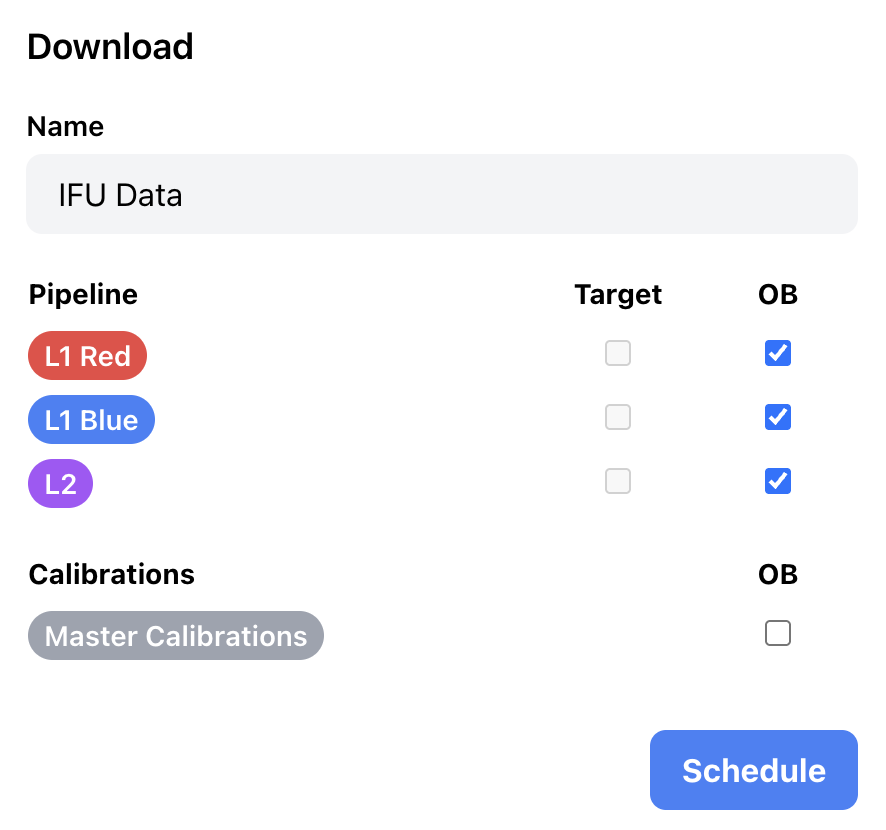 | 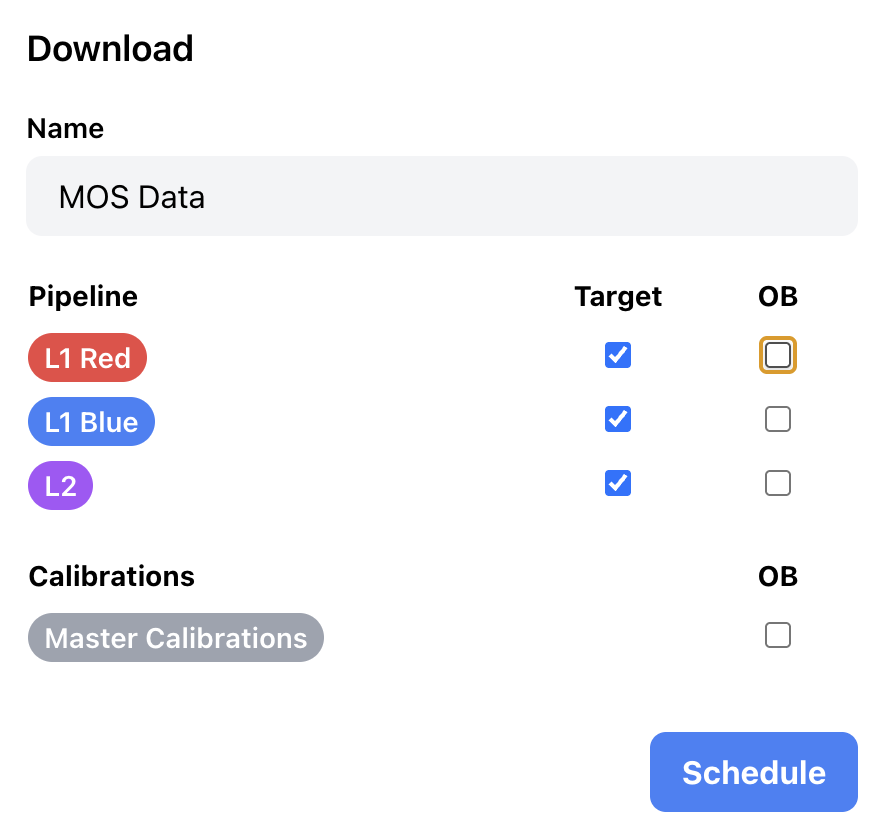 |
Selecting files types and pipeline products
Once the wanted data kind is selected, clicking Schedule button, at the bottom of the dialog, will lanunch the job in the WAS servers.
Now, clicking on Downloads icon, in the left pane menu, you see the list of generated downloads and the status of each one.
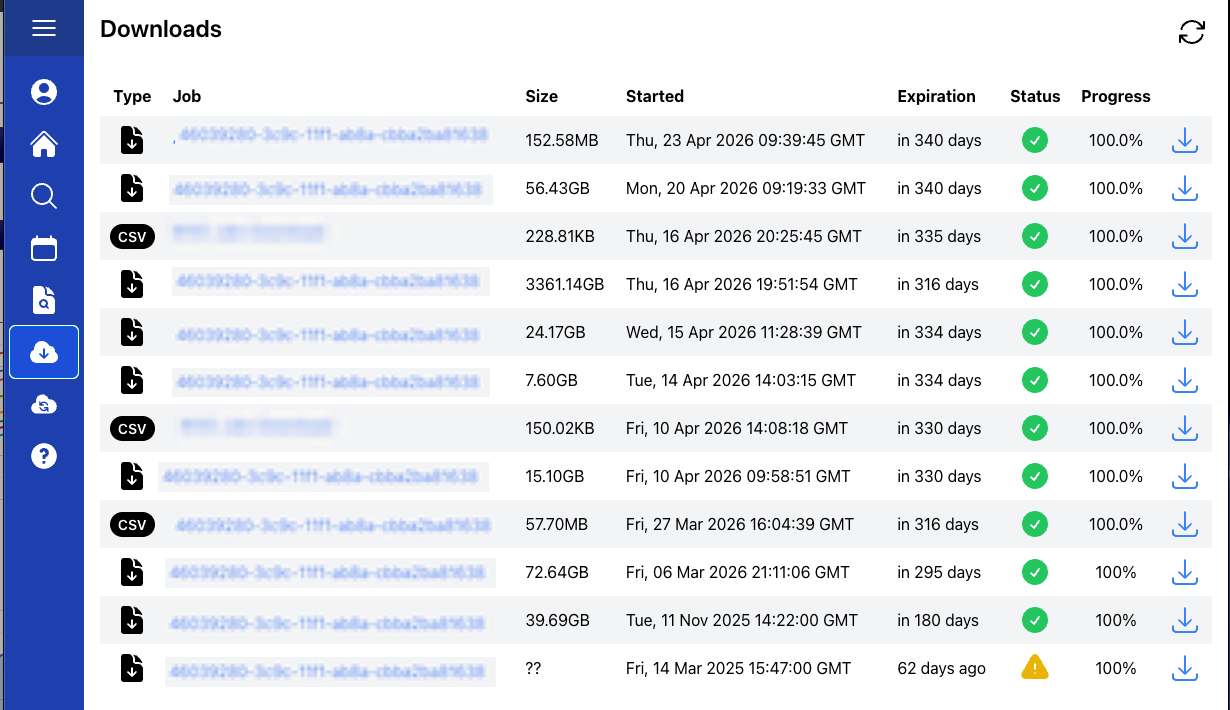
Clicking the download icon, at the far right of the job row, a links.out file is downloaded with the list of URLs of all of the files contained in the job. This file can be used with a download manager software or in your custom software if applicable.
To download an entire job’s file list, WAS automatically generates several ready-to-use command lines (rsync, wget, curl, etc.) in each job’s detail view; you can copy and paste them directly into your terminal.
The job's detail view has the following features:
Status
- EXECUTED: job is complete and data can be downloaded
- EXECUTING: server is collecting data – please wait
- QUEUED: pending processing
- DEGRADED: job completed but it detected missing files
- ERROR: there was a problem – please check the detailed view
Size: total download size
Started/Finished: job processing time
Expiration date: when the job will be removed from WAS
Query: computed query based on parameters the user has provided for the search
Output: List, CSV
Files: total number of files
Targets: total number of targets
Download links: options for downloading files through different common clients. Copy-paste any into your terminal, making sure you have the chosen client already installed.
Delete button: Deletes the job form WAS servers. There is no way to recover it unless the query is replicated or saved in your profile.
Regenerate button: Regenerates the job on WAS servers keeping the same ID but updating dates. This new download feature is primarely targeted for release candidates (iDRC).
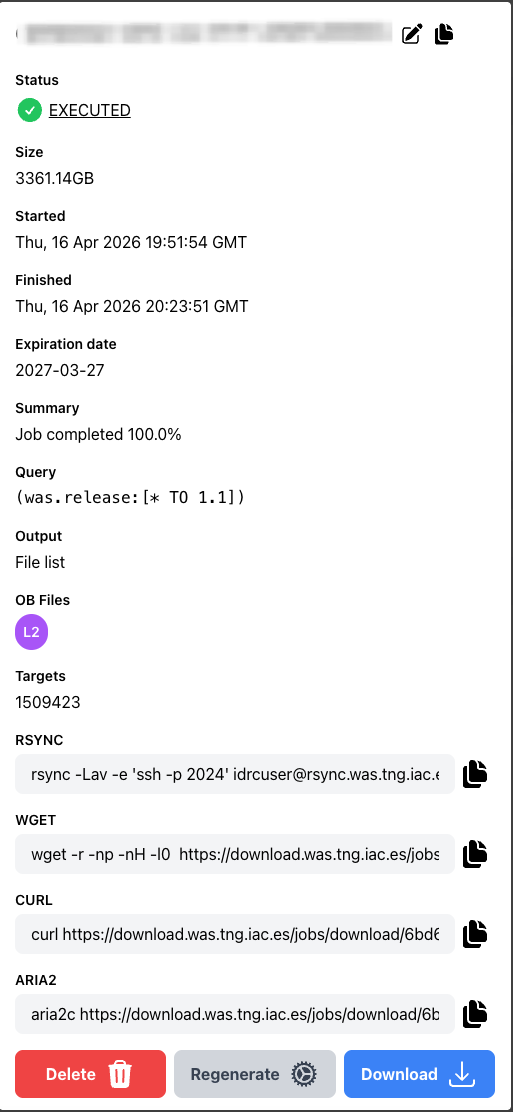 Detail job view